
Step 1
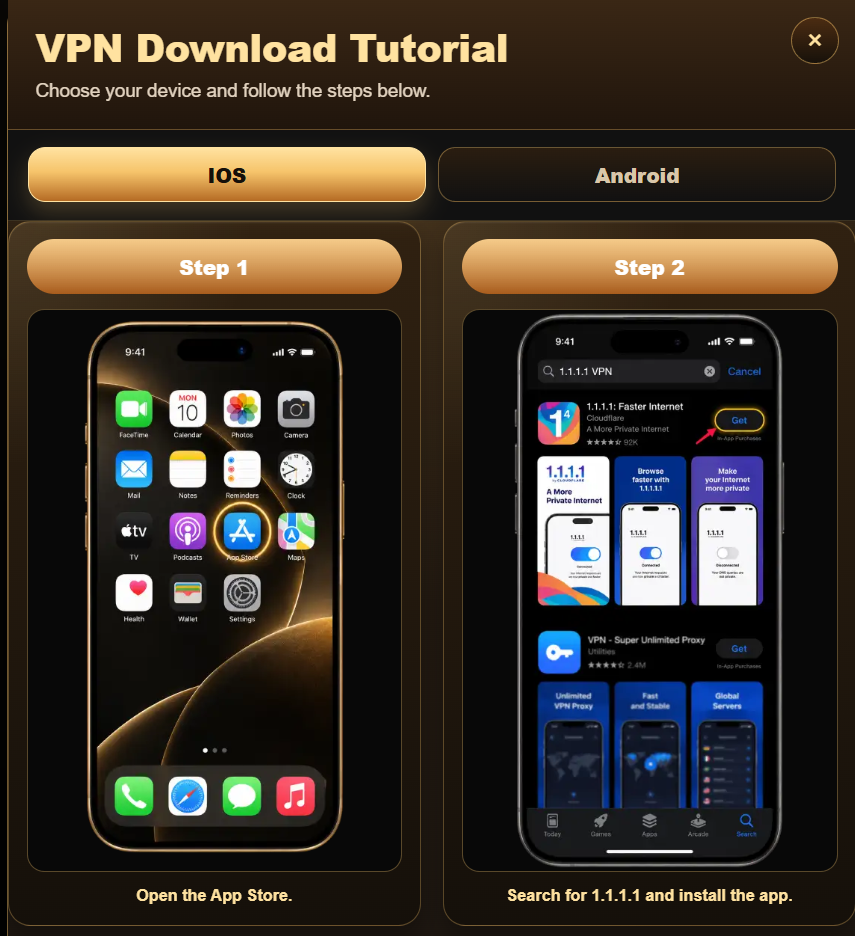
Open App Store.
CoconutJL · Support
Start by identifying what is failing: the page, the browser, an account step or a specific service action. CoconutJL.com provides troubleshooting information here; it cannot view external account records or change an account status.
Record the exact message and the action immediately before it. Distinguish a page that will not load from an account that is refusing access.
Refresh once, check the connection and try an up-to-date browser. If the message describes a restriction or verification requirement, follow the service’s stated process instead.
Keep the date, approximate time, browser, device and a non-sensitive reference. Redact passwords, codes, identification documents and private account data.
Account, settlement and transaction questions belong with the service maintaining those records. A link or logo on an information page does not establish a support relationship.
Use Login when existing credentials or recovery are involved. Use Register when checking a new application or confirmation. Repeatedly creating accounts or requesting codes may complicate the original problem.
Never disclose a password or one-time verification code to someone who offers to resolve an issue through a public group.
Describe whether you are using a browser, a saved shortcut or installed software. Those are different environments. App and Download explain the distinctions and source checks.
If a third-party network tool is involved, consult its own published device instructions. Network tools do not change eligibility or the rules of the service you are accessing.
Preserve the relevant reference and seek clarification from the identified service. Avoid sending repeated unrelated messages; one clear account of the issue is easier to assess.
This website does not promise a response time or advertise a staffed live-chat service. Contact lists the contact information currently available here.
Return to CoconutJL.com information pages for topic-specific reading, and use FAQ when you need a short answer before deciding the next step.
\nOpen App Store.
Find 1.1.1.1: Faster Internet by Cloudflare and install it.
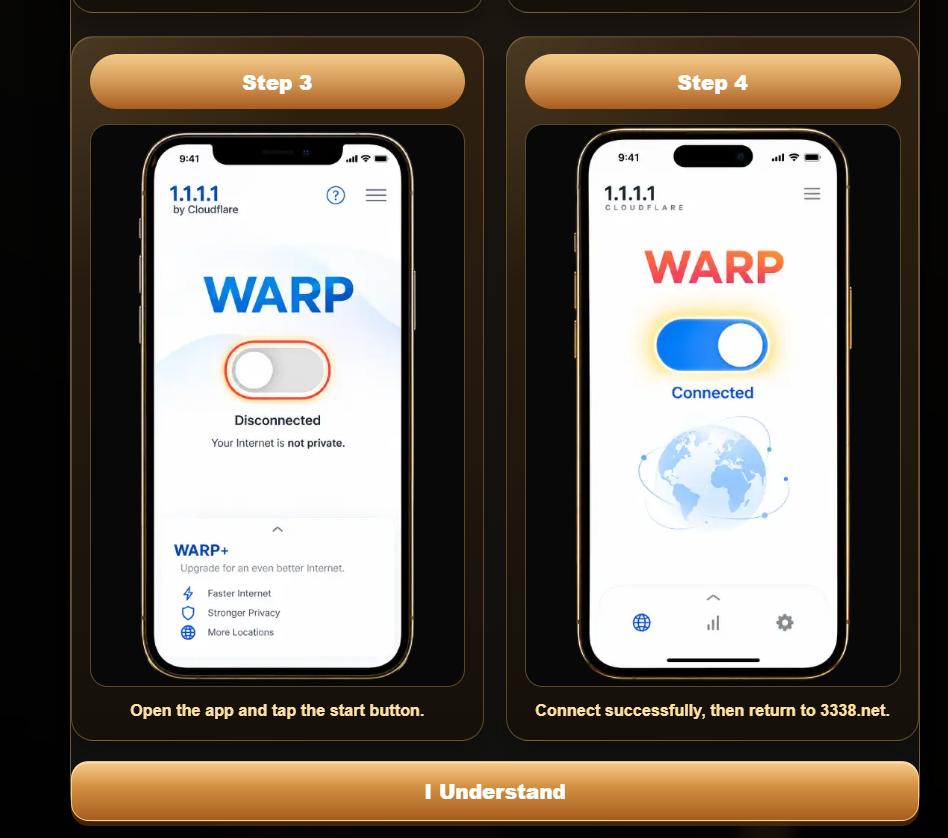
Open the app, follow setup and approve the VPN profile when your device asks.
Turn on WARP. Once the app reports a connection, return to the website.
App screens may vary by version. Cloudflare setup instructions.
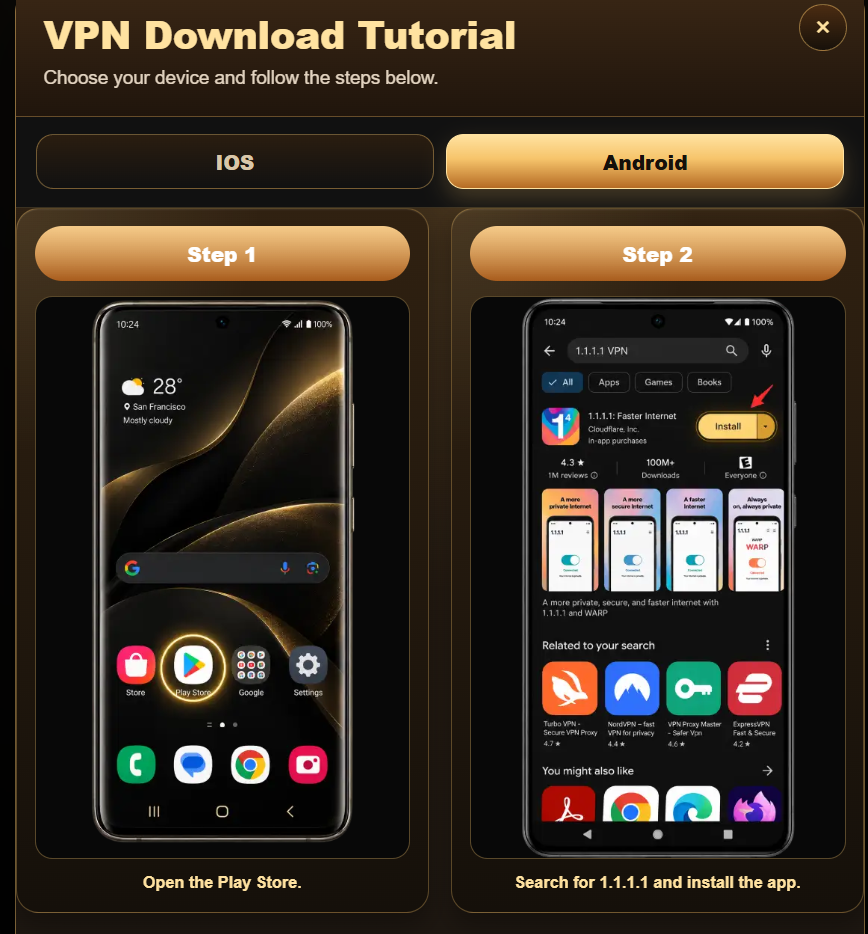
Open Google Play.
Find 1.1.1.1: Faster Internet by Cloudflare and install it.
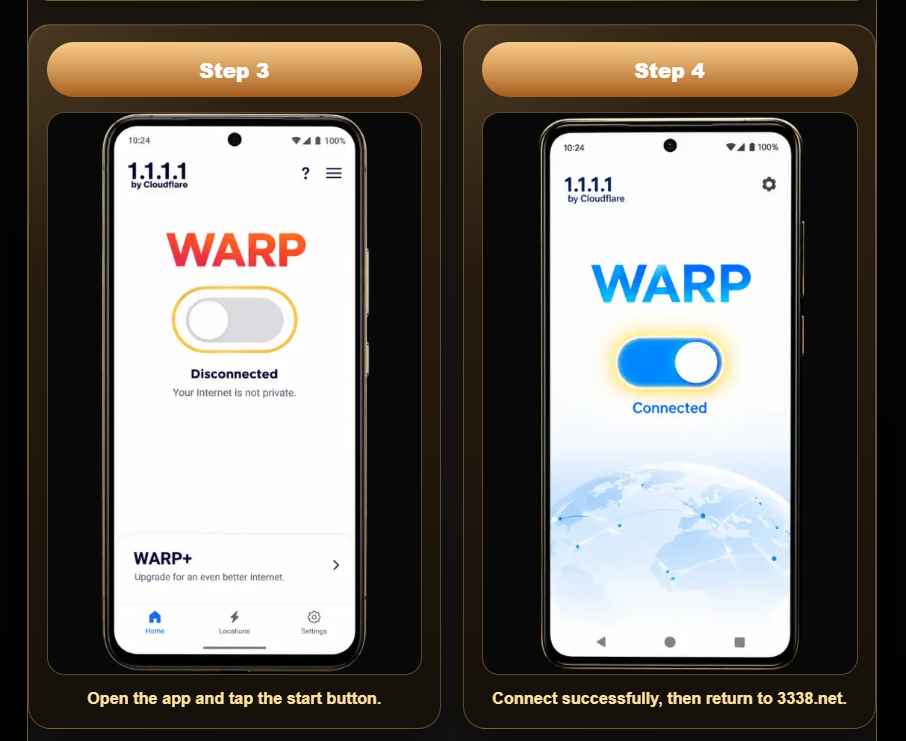
Open the app, follow setup and approve the VPN profile when your device asks.
Turn on WARP. Once the app reports a connection, return to the website.
App screens may vary by version. Cloudflare setup instructions.